💻 Digital Art · 30 mins · 🌿 Intermediate · Ages: 7-9 years, 10-12 years, 13+ years
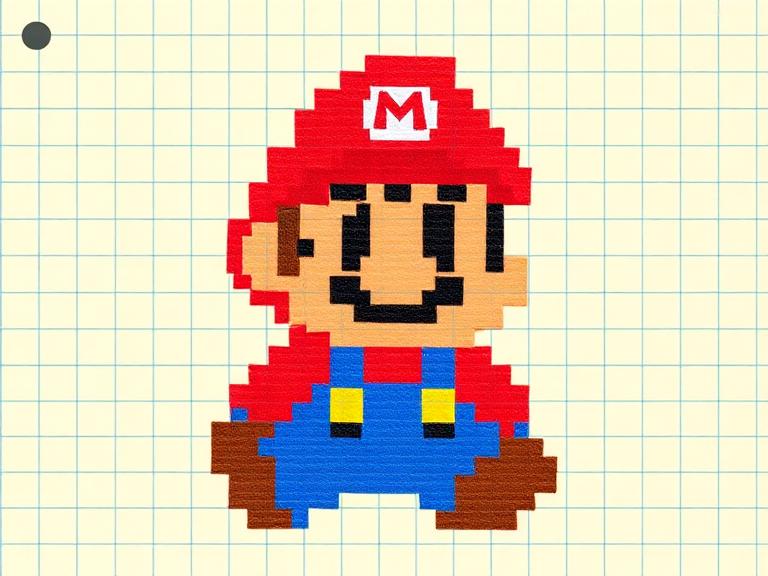
Design your own retro-style pixel art game character! Using our Pixel Art Creator tool, you'll plan a character on a grid, choose a limited color palette, and create sprites that look like they belong in a classic video game. 8-bit never goes out of style!
Materials Needed
- Computer or tablet
- Our Pixel Art Creator tool
- Graph paper and pencil (for planning)
Step-by-Step Instructions 📝
Plan on graph paper first
Grab graph paper and sketch your character in a 16x16 grid. Start with the head (about 5-6 squares), body, arms, and legs. Keep the design simple — at this small size, every pixel matters! Color in your plan with colored pencils to test colors.
Tip: Study classic game characters like Mario or Mega Man — notice how they use just a few pixels to show detailed features.
Set up your pixel canvas
Open the Pixel Art Creator and set your canvas to 16x16 pixels. Choose a limited color palette — classic games used only 4-8 colors. Pick a skin tone, a main costume color, an accent color, a dark outline color, and a highlight color.
Tip: Limiting your palette forces creative choices and makes your character look more cohesive and retro-authentic.
Draw the outline
Using your darkest color, place pixels for the character outline. Start with the head shape, then add the body silhouette. Don't worry about interior details yet — just get the overall shape right. Stand back from the screen to check the shape reads clearly.
Tip: Avoid single-pixel protrusions — they look like errors at this scale. Keep outlines clean and deliberate.
Fill in the base colors
Fill the interior with your base colors — skin for face and hands, costume color for the body, hair color for the head. Add the secondary costume color for accents like boots, belt, or cape. Each section should be a solid, clean fill.
Tip: Leave a 1-pixel gap between the outline and fill on the light side for a "highlight" effect.
Add shading and details
Use slightly darker versions of each base color to add shadow on one side of each body part. Add eyes (just 2 dark pixels), mouth, and any costume details. These small details bring the character to life at just 16 pixels tall!
Tip: Place highlights on the top-left of rounded shapes and shadows on the bottom-right for consistent 3D lighting.
Create animation frames
Duplicate your character and make small changes for animation — move the legs for walking, raise an arm for attacking, squish slightly for jumping. Even 2-3 frames creates a convincing animation when played in sequence!
Tip: For a walk cycle, you only need 4 frames: stand, step-left, stand, step-right. Keep changes small between frames.
You Did It! 🎉
Great job completing this project! Share your creation with friends and family, or try another project from our collection.
More Like This ✨
Digital Space Adventure
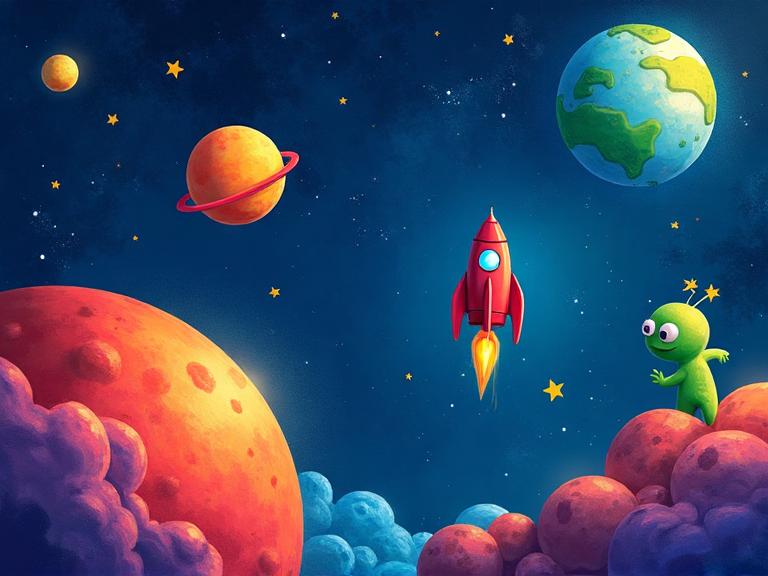
Create an amazing space scene using our digital drawing tool! Journey through the cosmos as you paint colorful planets, design your own rocket ship, and populate the universe with stars and friendly aliens. Perfect for kids who love both art and outer space!
Design Your Own Emojis
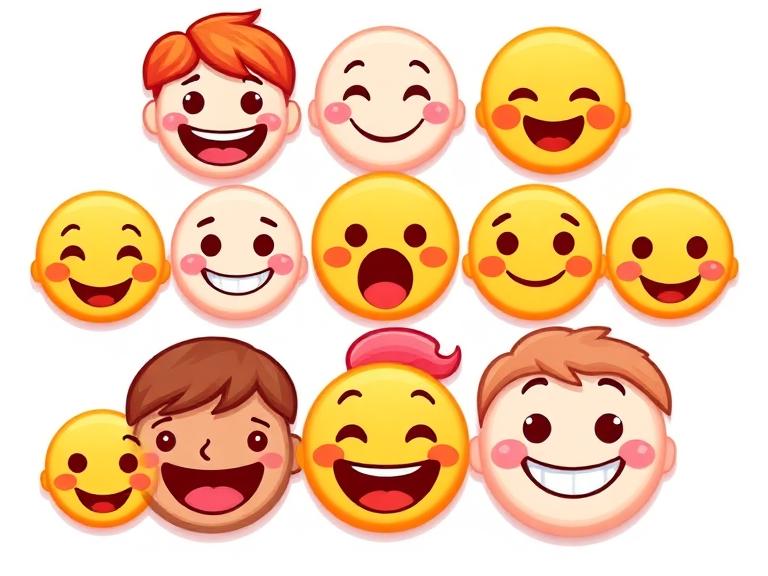
Create a set of custom emojis that express YOUR feelings! Design faces, objects, and silly characters using digital tools. Learn about visual communication, expression design, and how simple shapes convey big emotions. Your emoji pack will be one of a kind!
Character Design Workshop
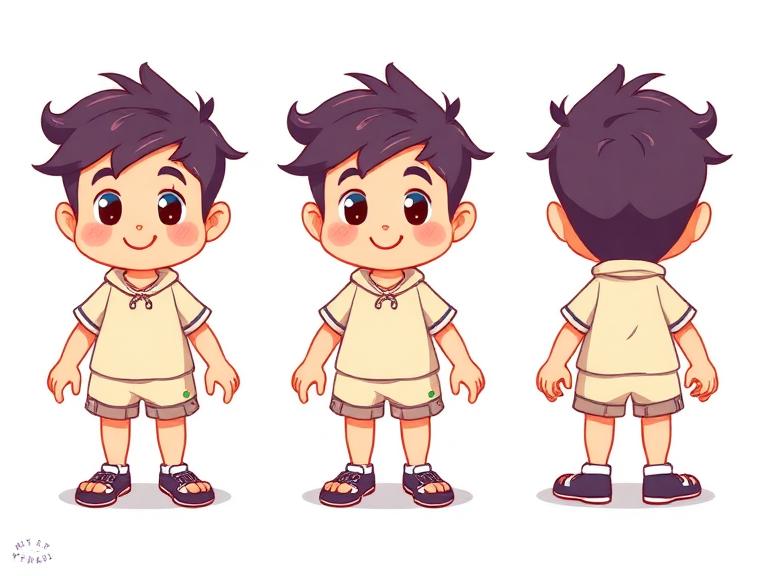
Learn professional character design techniques used in animation and video games! Create a character from scratch — personality first, then visual design. Build a complete character sheet with front, side, and expression views.
Materials You'll Need
- Computer or tablet
- Our Pixel Art Creator tool
- Graph paper and pencil (for planning)
Try It Digitally!
Use our online tool to create a digital version of this project.
Open Digital Tool